

AnyTool Screenshot
Capture more than what's on your screen.
Capture the visible area, a region or a whole scrolling page; save PNG, JPEG or PDF, or copy. Processed on your device.
For Google Chrome and Microsoft Edge. Installed manually: no store, no one-click install.
- Version
- 0.2.0
- Released
- October 10, 2026
- File
- anytool-screenshot-0.2.0.zip
- SHA-256
- 28d03bfdae5a3d17992dd1d791d2a13145a02fe7581c6b726f32a4056e5cf7ed
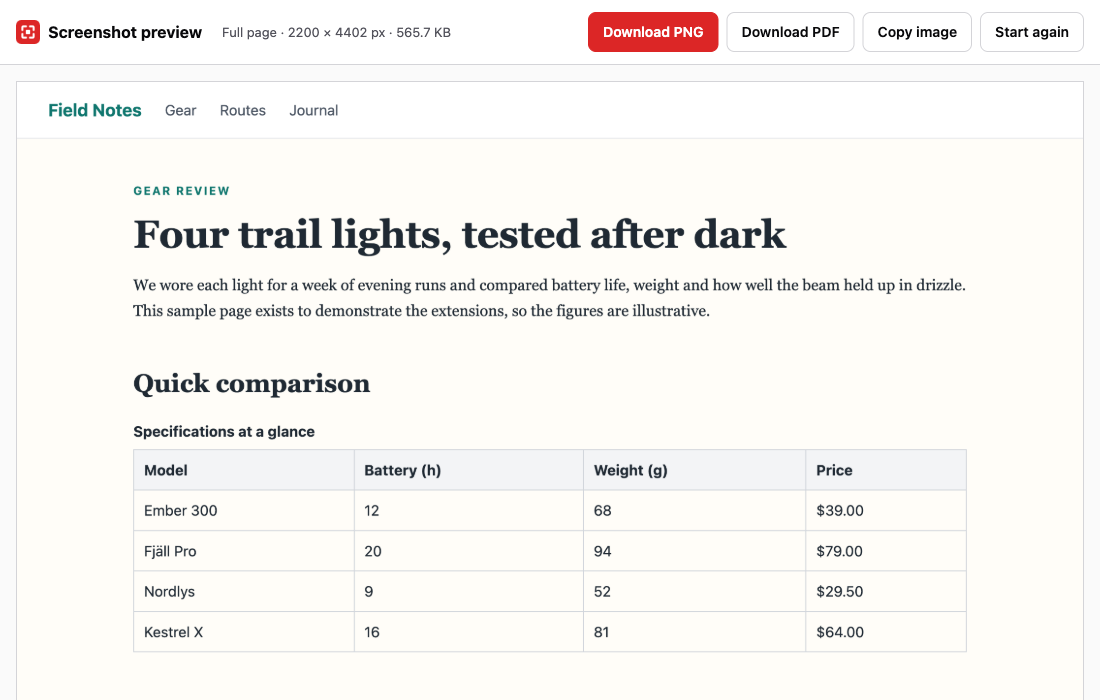
1 / 2 · The preview of a full-page capture of a sample article, with Download PNG, Download PDF, Copy image and Start again controls. Shown on a sample page.
What it is
AnyTool Screenshot captures what you see, a rectangle you draw, or the whole scrollable page, and shows a preview before you save anything.
Full-page capture scrolls the page for you, takes each frame, and stitches them together locally. Fixed and sticky headers are hidden after the first frame so they are not repeated down the image, and the page is restored to its original scroll position afterwards.
Captures never leave your computer. There is no account, no upload, and no analytics inside the extension.
Who it is for
Researchers and students
Keep a dated copy of an article, paper page or documentation section exactly as it appeared, without relying on the page staying online or unchanged.
Designers and product teams
Capture a whole landing page or flow screen at your display's native density for reviews, mood boards and before-and-after comparisons.
Support, QA and engineering
Crop a bug report down to the relevant region, or capture a long error log or dashboard in one image instead of a stack of overlapping screenshots.
Writers and documentation teams
Grab a precise rectangle for a how-to, then copy it straight to the clipboard and paste it into your editor.
What it does
Features
- Visible-area capture
- Drag-to-select region capture
- Full scrollable page capture with progress and cancel, including scrolling panels and same-origin iframes
- High-density display aware: output matches your screen's pixel ratio
- Preview, then save as PNG or JPEG (with quality), export a paginated PDF in A4, Letter or Legal, or copy to clipboard
- Keyboard shortcuts for full page, visible area and region capture
- Very tall pages kept at full resolution in parts instead of being scaled down
- Descriptive file names with site and timestamp
What it does not do
- Upload screenshots anywhere
- Capture in the background or without you clicking
- Capture browser-internal pages, the extension stores, or other extensions' pages
- Capture cross-origin iframes, which browsers do not let extensions read
Use cases
Archive a long article as one image or PDF
Use Full Page on a long read, check the preview, then save a PNG or JPEG or a paginated PDF in A4, Letter or Legal. The PDF is built on your device from the captured image, so it contains pictures of the page rather than selectable text.
Review a landing page with your team
Full-page capture stitches every screen into a single tall image, which is easier to annotate and share than a dozen viewport screenshots. Sticky headers appear once at the top instead of repeating.
Document a bug without the noise
Select Area lets you drag a rectangle around the broken component only. The crop is taken from a single capture, so what you select is exactly what is saved.
Share a table or chart in chat
Capture the visible area or a region and choose Copy image. It goes to your clipboard as a PNG, ready to paste into a chat or an email.
Keep a record of a confirmation page
Capture the page you are logged in to and save it locally. Because the capture comes from your own browser, it shows pages that online screenshot services cannot reach. Nothing is uploaded.
Track how a page changes over time
File names include the site and a timestamp (for example example.com_Full-page_2026-10-10_14-30-05.png), so captures of the same page sort naturally and are easy to compare.
How to use it
- Open the page you want to capture and click the AnyTool Screenshot toolbar icon.
- Choose Visible Area, Select Area, or Full Page, or use a keyboard shortcut (Alt+Shift+F full page, Alt+Shift+V visible area, Alt+Shift+R region, Alt+Shift+S open this popup; change them in your browser's extension shortcuts page).
- For Select Area, drag a rectangle on the page. Press Escape to cancel.
- Review the preview, then save as PNG or JPEG, export a PDF, or copy to clipboard.
Step-by-step guide: How to capture a full-page screenshot in Chrome or Edge
How it works
It measures the page first
Before capturing, the extension reads the page's scroll size, viewport size and device pixel ratio, so a 2x display produces a 2x image rather than a blurry 1x one.
It scrolls and captures one screen at a time
The browser's capture API takes a picture of what is visible. The extension scrolls the page, waits briefly for lazy-loaded images, and captures again. Browsers allow only two captures per second, so a very long page takes a few seconds, and a progress bar shows how far along it is.
Fixed and sticky elements are handled
After the first frame, fixed and sticky elements (navigation bars, cookie banners, floating chat buttons) are hidden so they do not repeat down the image. They are restored when the capture ends.
Frames are stitched on your device
Each frame is drawn onto a canvas at its actual scroll position, so overlap is overwritten with identical pixels rather than duplicated. If the result would exceed browser canvas limits (16,384 pixels on a side or about 120 megapixels), it is split into full-resolution parts, and only scaled down as a last resort, with the preview telling you by how much.
The page is always put back
Scroll position, the temporary style that hides scrollbars, and any hidden elements are restored in a cleanup step that runs even when a capture fails or is cancelled. Automated tests check that the page's own styles are untouched afterwards.
Tips for better results
- Scroll through a page that loads images lazily before capturing, so everything is already on the page.
- Close floating widgets you do not want in the image; fixed elements appear once, at the top.
- Choose JPEG with a quality around 85 to 92 for photographs and long pages: it is much smaller than PNG.
- Browser zoom changes the pixel ratio. Capture at 100% for the sharpest, most predictable result.
- Set your own shortcuts at chrome://extensions/shortcuts or edge://extensions/shortcuts if the defaults clash with another extension.
- Press Escape during region selection to cancel cleanly; nothing is captured.
- Use Copy image for chat and Download PNG when you want to keep the file.
Compared with other options
Several ways to capture a whole page exist. Which is best depends on how often you do it and what you need to do with the result.
| Option | Best for | Trade-off |
|---|---|---|
| Edge Web capture or Chrome DevTools "Capture full size screenshot" | An occasional full-page capture without installing anything. | No drag-to-select preview flow, no PDF export or clipboard copy in the same step, and DevTools is unfamiliar to many people. |
| Operating-system screenshot tools | Quick shots of anything on screen, including non-browser apps. | They capture what is on screen, so a long page needs several shots stitched by hand. |
| Online screenshot services | Capturing a public URL from a computer that has no browser extension. | They generally load the page from their own servers, so they cannot see pages behind your login, and the URL and image pass through a third party. |
| AnyTool Screenshot | Regular captures of what your own browser shows, including logged-in pages, with region select, preview, PNG, PDF and clipboard in one place. | Works on ordinary web pages only; cross-origin iframes cannot be captured; no built-in annotation editor. |
Permissions explained
The extension asks for the following browser permissions and nothing else. It requests no access to all websites.
| Permission | Why it is needed |
|---|---|
| activeTab | Lets the extension capture the tab you are looking at, only after you open it from the toolbar. It grants no standing access to any site. |
| scripting | Runs short-lived functions in the current tab to measure the page, scroll it during full-page capture, and draw the region-selection overlay. |
Privacy
What it reads
- The pixels of the tab you capture, through the browser's capture API, only after you click one of the capture buttons.
- The page's size and scroll position, so it can scroll and stitch a full-page capture and then restore the page.
- The page's address and title, used only to name the saved file.
What it keeps
- The finished capture is held in the extension's own IndexedDB storage so the preview tab can show it. It is deleted when you close the preview, and anything left behind is removed after one hour.
- No settings, history or identifiers are stored.
Nothing it reads is sent to AnyTool Studio or any other server. Read the full privacy notice.
Browser compatibility
Google Chrome
Manifest V3, Chrome 116 or later.
Install from the ZIP download above. Not currently listed in the browser store.
Microsoft Edge
Manifest V3, Edge 116 or later.
Install from the ZIP download above. Not currently listed in the browser store.
Limitations
- Pages taller than a browser canvas allows are split into full-resolution parts (up to 12). Pages too wide or too tall even for that are scaled down, and pages that cannot be scaled to at least 25% are refused with an explanation.
- Content that only appears while scrolling (virtualised lists, some parallax effects) may be incomplete.
- When the page itself does not scroll, the largest scrolling panel or same-origin iframe is captured. Pages with several independent panels capture only the largest; cross-origin iframes cannot be captured.
- Region selection works inside the visible viewport.
- Chrome and Edge do not allow extensions to capture browser-internal pages or store pages.
Extension or online tool?
Extension. Use the extension to capture a page you are already looking at, including pages behind a login, or just one part of a long page.
Online tool. Use an online tool when you already have the image file and want to compress, resize or convert it.
Troubleshooting
The capture buttons say the page can't be captured.
Browser-internal pages (chrome://, edge://), extension stores and the PDF viewer are blocked by the browser. Open a normal website and try again.
Local files (file://) fail.
In the browser's extension settings, enable Allow access to file URLs for this extension.
The image has a seam or a repeated strip.
Some sites animate on scroll. Reload the page, let it settle, and capture again. Sites with continuous animations may still show seams.
Frequently asked questions
Are my screenshots uploaded?
No. Captures are created and stored in your browser only until you close the preview, and the extension makes no network requests.
Why do I need to click the icon every time?
The extension uses the activeTab permission, so it can only see a page after you invoke it. That is the narrowest permission that allows capture.
Why was my long page split into parts?
Browsers limit how large a single image can be. Rather than scaling it down, a very tall page is kept at full resolution and split into parts. Downloads save every part, and the PDF contains them all in order.
Why is a sticky header missing from the lower part of the image?
Fixed and sticky elements are hidden after the first frame so they do not repeat at every scroll step. They appear once, at the top.
Can it capture pages that need me to be logged in?
Yes. It captures what your browser is already displaying, so signed-in pages work. Nothing is sent anywhere, so your session and the page content stay on your device.
Does full-page capture need the popup to stay open?
The popup shows progress and a Cancel button. If it closes, the capture still finishes and the preview opens in a new tab.
Is the PDF searchable?
No. The PDF contains images of the page, paginated at the paper size you choose (A4, Letter or Legal). It is useful for archiving and sharing, but its text cannot be selected or searched.
Why does a video or animation look different in the capture?
The browser captures a single frame at the moment of each screenshot. Moving content can differ between frames in a full-page capture.
What file names does it use?
The site, the capture type and a timestamp, for example example.com_Visible-area_2026-10-10_14-30-05.png, sanitised so they are safe on Windows, macOS and Linux.
Can I capture a single element, such as one table?
Not as a dedicated mode. Use Select Area and drag around the element; the crop is exact to the pixel.
Does it work offline?
Yes. It makes no network requests, so capture, preview and export all work without a connection.
Which browsers does it support?
Google Chrome and Microsoft Edge, version 116 or later. It was tested in Chromium and Google Chrome; an Edge-specific test pass is still to be done.
Related extensions
 InspectDirect download
AnyTool Font & CSS Inspector
Understand the design behind any element.
Click any element for fonts, colors, contrast, spacing and CSS variables, plus a page palette. Copy values or CSS.
- Hover highlight with a size and tag tooltip
- Click to select, arrow keys to move to parent or child
- Font family, size, weight, style, line height and letter spacing
View details
 ExtractDirect download
AnyTool Smart Data Extractor
Turn visible page data into useful files.
Export HTML tables and repeated items like lists and cards from the page you are viewing to CSV, JSON or XLSX.
- One-click auto-detect of the most substantial table or list on the page
- Finds every HTML table on the page and previews the first rows
- Point-and-click selection of repeated elements (cards, list items, rows)
View details