

AnyTool Smart Data Extractor
Turn visible page data into useful files.
Export HTML tables and repeated items like lists and cards from the page you are viewing to CSV, JSON or XLSX.
For Google Chrome and Microsoft Edge. Installed manually: no store, no one-click install.
- Version
- 0.2.0
- Released
- October 10, 2026
- File
- anytool-data-extractor-0.2.0.zip
- SHA-256
- ff627f58867b889d26d1046654c775c3e5eb8fb59a38278fc98bcca20114b769
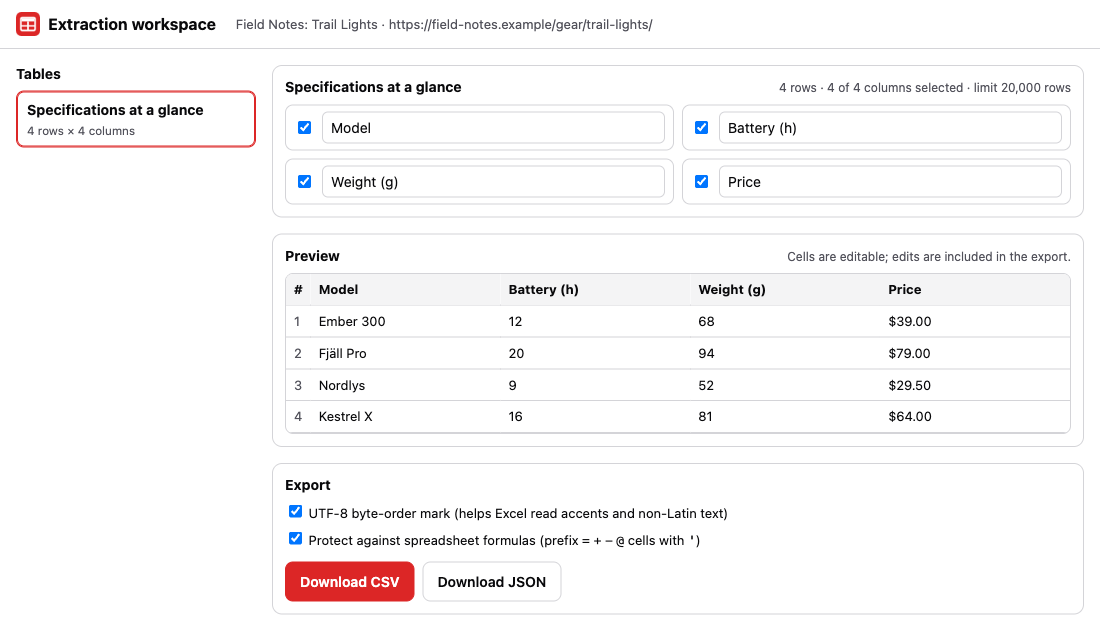
1 / 3 · The extraction workspace listing the table found on a sample page, with column checkboxes, an editable preview and CSV and JSON export buttons. Shown on a sample page.
What it is
AnyTool Smart Data Extractor turns data that is already on the page you are viewing into a file: HTML tables, and repeated structures such as product cards, result lists and link lists.
You choose what to extract, review a preview you can edit, pick the columns, and only then export to CSV or JSON. Extraction runs entirely in your browser, on the page you opened, when you ask.
It is intended for content you are authorised to access and export. It does not log in for you, solve CAPTCHAs, run in the background or crawl across sites. Optional automatic paging only starts when you press Start, stays on the one site you are on, and stops at the limit you set.
Who it is for
Analysts and researchers
Move a published table or a results list into a spreadsheet without retyping, with columns you choose and a preview you can correct before saving.
Marketers and operations teams
Turn a pricing grid, a directory listing or a product list on a page you can access into a CSV for a report or an import.
Developers and data engineers
Prototype against real structure quickly: export repeated cards as JSON with link and image addresses, then build from it.
Journalists and students
Collect figures from a public page into a file you can sort and chart, keeping the source address in the workspace header.
What it does
Features
- One-click auto-detect of the most substantial table or list on the page
- Finds every HTML table on the page and previews the first rows
- Point-and-click selection of repeated elements (cards, list items, rows)
- Text, link and image columns detected automatically, renameable and editable
- CSV (UTF-8 with Unicode preserved), JSON and XLSX export
- Spreadsheet formula-injection protection for CSV
- Likely personal data columns are left unselected by default
- Manual, page-by-page appending for paginated listings
- Optional automatic paging through next-page links or infinite scroll, with a page limit, delay and Stop button
What it does not do
- Start by itself, run in the background, or move to another site: automatic paging runs only after you press Start and never leaves the site you are on
- Bypass logins, CAPTCHAs, paywalls, access controls or rate limits
- Read form field values, passwords, cookies or storage
- Run in the background or send extracted data anywhere
Use cases
Export an HTML table to CSV
Choose Find Tables, pick the table, deselect columns you do not need, rename headers and download. Merged cells are expanded by repeating their value so every row is complete.
Export a list of cards to JSON
Choose Pick Repeated Items and click one card. The extension finds the similar siblings, derives text, link and image columns, and exports clean JSON records.
Collect titles and URLs from a results page
Link columns hold absolute URLs, and link text is a separate column. Use them to build a reading list or a content inventory.
Gather a multi-page list, manually
Extract the first page, open the next one yourself and choose Append This Page. The same pattern is applied to the new page and the workspace grows. Nothing is loaded for you.
Clean up before the spreadsheet
Edit cells in the preview, rename columns and untick noise. Edits are included in the export, so the file is ready to use.
Convert a specification table to JSON
Export the same table as JSON to use as test data or configuration. Values are strings exactly as displayed.
How to use it
- Open the page that holds the data and click the AnyTool Smart Data Extractor toolbar icon.
- Choose Auto-detect Data for one click, or Find Tables, or Pick Repeated Items and click one sample item.
- In the workspace, review the preview, rename or deselect columns, and fix any cells.
- Export CSV, JSON or XLSX. For more pages, append them yourself with Append This Page, or press Start collecting to page through them automatically.
Step-by-step guide: How to export a table from a web page to CSV
How it works
Tables are read structurally
Each table becomes a rectangular grid. Rowspan and colspan are expanded deterministically by repeating the merged value, header rows are detected from thead or an all-header first row, duplicate header names are made unique, and a nested table is listed separately instead of leaking into its parent cell.
Repeated items from one click
Starting from the element you click, the extension climbs until it finds a level with at least two similar siblings, meaning the same tag and a shared class. Parent level and Child level let you correct it, and the number of items found is shown before you extract.
Fields keyed by structure
For each item, text, link addresses and image addresses are recorded against their position inside the item. Matching positions across items become columns, named from class names where possible and always renameable.
Sensitive columns default to off
Columns that look like email addresses, phone numbers, card numbers, government IDs or credentials, or whose header suggests a secret, start unselected with a note. You can include them deliberately.
Exports that open correctly
CSV follows RFC 4180 quoting with CRLF line endings, optional UTF-8 byte-order mark for Excel, and cells beginning with =, +, -, @, tab or carriage return are prefixed with a single quote unless they are plain numbers. JSON is not altered.
Local and temporary
Extraction happens in the page you opened, and the result is held in the extension's own storage only while the workspace tab is open. Form field values are never read.
Tips for better results
- For a list that loads more as you scroll, use Collect more pages with Infinite scroll, or scroll yourself first; only what is on the page at that moment is read.
- Start with a small page limit (3 to 5) to confirm the pattern is right before collecting more.
- Use a delay of 2 seconds or more so you are gentle on the site you are collecting from.
- Click a representative item that has all the fields you want, not an unusual one.
- If the selection is too narrow or too broad, use Parent level or Child level before extracting.
- Rename columns in the workspace to match the system you are importing into.
- Keep formula protection on when a spreadsheet will open the CSV; turn it off only for tools that read the file programmatically.
- Check the notes above the preview. They explain merged cells, missing headers and truncation.
- Choose XLSX when a spreadsheet has accents or non-Latin text and you do not want to deal with CSV encoding.
Compared with other options
There are many ways to get data out of a page. They differ in what they can reach, who sees the data and how much setup they need.
| Option | Best for | Trade-off |
|---|---|---|
| Select and copy-paste into a spreadsheet | A small, simple table. | Merged cells, hidden text and multi-line cells often land in the wrong place; no column choice; manual for every page. |
| Spreadsheet import functions such as IMPORTHTML | Public pages that update and need to stay linked. | The fetch happens on the spreadsheet provider's servers, so it cannot see pages behind your login or content rendered by scripts. |
| Online scraping services | Large, scheduled collection from public sites at scale. | Data and URLs pass through a third party; they may conflict with a site's terms and cannot use your session. |
| Writing a script in the DevTools console | Developers who want full control. | Takes time to write and maintain; no preview or column UI. |
| AnyTool Smart Data Extractor | One-off or occasional exports from pages you are already viewing, with preview, column choice and safe CSV. | Paging is opt-in and bounded (up to 50 pages per run); no scheduling, cross-site crawling or background extraction; 20,000-row cap. |
Permissions explained
The extension asks for the following browser permissions and nothing else. It requests no access to all websites.
| Permission | Why it is needed |
|---|---|
| activeTab | Lets the extension read the page you are viewing, only after you click the toolbar icon. |
| scripting | Runs the table finder and the repeated-item picker in the current tab. |
Optional site access (on request only). Only if you press Start collecting for automatic paging: your browser asks for access to the one site you are on, and it is released when the run ends. It is never requested at install and never covers all sites.
Privacy
What it reads
- The text, link addresses and image addresses of the tables or repeated items you choose to extract.
- Never the values of form fields, passwords, cookies, local storage or hidden inputs.
- If you start automatic paging: the same fields from further pages of the same site, which your browser loads in your own tab at your request.
What it keeps
- Extracted records are held in the extension's own IndexedDB storage while the workspace tab is open, and deleted when it closes. Anything abandoned is removed after six hours.
- Column names and selections are kept in memory only.
Nothing it reads is sent to AnyTool Studio or any other server. Read the full privacy notice.
Browser compatibility
Google Chrome
Manifest V3, Chrome 116 or later.
Install from the ZIP download above. Not currently listed in the browser store.
Microsoft Edge
Manifest V3, Edge 116 or later.
Install from the ZIP download above. Not currently listed in the browser store.
Limitations
- Automatic paging needs a next-page link or an infinite-scroll list that matches the pattern you picked. It stops at your page limit (up to 50 pages per run), at 20,000 rows, or when nothing new appears.
- Tables built from divs are not tables; use Pick Repeated Items for those.
- Content inside cross-origin iframes is not reachable.
- Merged cells (rowspan/colspan) are expanded by repeating the cell's value in each covered position.
- Very large pages are capped (20,000 rows per extraction) with a visible warning.
Extension or online tool?
Extension. Use the extension to pull a table or a list of cards from a page you are viewing, including pages that need you to be signed in.
Online tool. Use an online tool when you already have a CSV or JSON file and want to convert, merge or clean it.
Troubleshooting
No tables were found.
The data may not be in a table element. Use Pick Repeated Items and click one row or card.
The repeated-item picker selected the wrong group.
Use the Parent and Child buttons in the picker bar to move the selection up or down a level, or click a different sample.
The page loads more rows as I scroll.
Scroll to load the rows you want first, then extract. The extension only reads what is on the page at that moment.
Frequently asked questions
Is extracted data sent to a server?
No. Extraction and export happen in your browser, and the extension makes no network requests.
Will the CSV open correctly in Excel with accents and non-Latin text?
Yes. CSV files are UTF-8 with a byte-order mark by default, which Excel uses to detect the encoding. You can turn the mark off.
What is formula-injection protection?
Cells that begin with =, +, -, @, tab or carriage return are prefixed with a single quote so a spreadsheet shows them as text instead of running them. Plain negative numbers are left alone. JSON export is not altered.
Can it scrape a whole site?
No. It works on the site in front of you, when you ask. There is no scheduler, background extraction or crawling across sites. Optional automatic paging only moves through that site's result pages after you press Start, up to the limit you set.
Why are some columns unchecked?
Columns that look like email addresses, phone numbers, card numbers or secrets start unselected so personal data isn't exported by accident. You can select them deliberately.
Can it follow pagination automatically?
Yes, if you choose to. In the workspace, press Start collecting, set a page limit and a delay, and pick next-page links or infinite scroll. Your browser asks for access to that one site for the duration of the run and it is released afterwards. It never starts by itself, stays on the same site, and you can press Stop at any time. You can also append pages manually.
Does it support infinite scroll?
Yes, as an opt-in mode. Choose Infinite scroll under Collect more pages; it scrolls your tab to the end, waits for the delay you set, reads the items again and stops when nothing new appears or at your limit.
Why does my browser ask for access to a site?
Only when you press Start collecting. Moving through pages needs access to the one site you are on, so the extension asks for exactly that site and gives it back when the run ends. It never asks at install and never asks for all sites.
How does auto-detect choose?
It scores visible tables and groups of similar items by how much data they hold and how many fields each item has, ignoring navigation and footers, and opens the highest scorer. If it is wrong, use Find Tables or Pick Repeated Items.
Can formulas run in the XLSX export?
No. Every cell is stored as text, so a value such as =HYPERLINK(...) is shown as text rather than evaluated.
What happens to merged cells?
The merged value is repeated in every position it covered, and the workspace tells you the table had merged cells.
Is the data typed?
Everything is exported as text exactly as displayed, in both CSV and JSON. Convert types in your own tooling.
How many rows can it handle?
Up to 20,000 rows per extraction, with a visible warning if a page has more.
Why is an email or phone column unchecked?
To avoid exporting personal data by accident. Tick it if you are allowed to export it.
Does it work on pages behind a login?
It reads what your browser displays, so yes. You are responsible for being allowed to export that content; it does not bypass access controls, CAPTCHAs or rate limits.
Is anything stored after I close the workspace?
No. The extracted data is deleted when the workspace tab closes, and anything abandoned is cleared after six hours.
Which browsers does it support?
Google Chrome and Microsoft Edge, version 116 or later. It was tested in Chromium and Google Chrome; an Edge-specific test pass is still to be done.
Related extensions
 CaptureDirect download
AnyTool Screenshot
Capture more than what's on your screen.
Capture the visible area, a region or a whole scrolling page; save PNG, JPEG or PDF, or copy. Processed on your device.
- Visible-area capture
- Drag-to-select region capture
- Full scrollable page capture with progress and cancel, including scrolling panels and same-origin iframes
View details
 InspectDirect download
AnyTool Font & CSS Inspector
Understand the design behind any element.
Click any element for fonts, colors, contrast, spacing and CSS variables, plus a page palette. Copy values or CSS.
- Hover highlight with a size and tag tooltip
- Click to select, arrow keys to move to parent or child
- Font family, size, weight, style, line height and letter spacing
View details