

AnyTool Font & CSS Inspector
Understand the design behind any element.
Click any element for fonts, colors, contrast, spacing and CSS variables, plus a page palette. Copy values or CSS.
For Google Chrome and Microsoft Edge. Installed manually: no store, no one-click install.
- Version
- 0.2.0
- Released
- October 10, 2026
- File
- anytool-inspector-0.2.0.zip
- SHA-256
- 17c36729dd8e6ff9554ee7764464b2e2378c64467ee4e2246f3b234c0bed5d7b
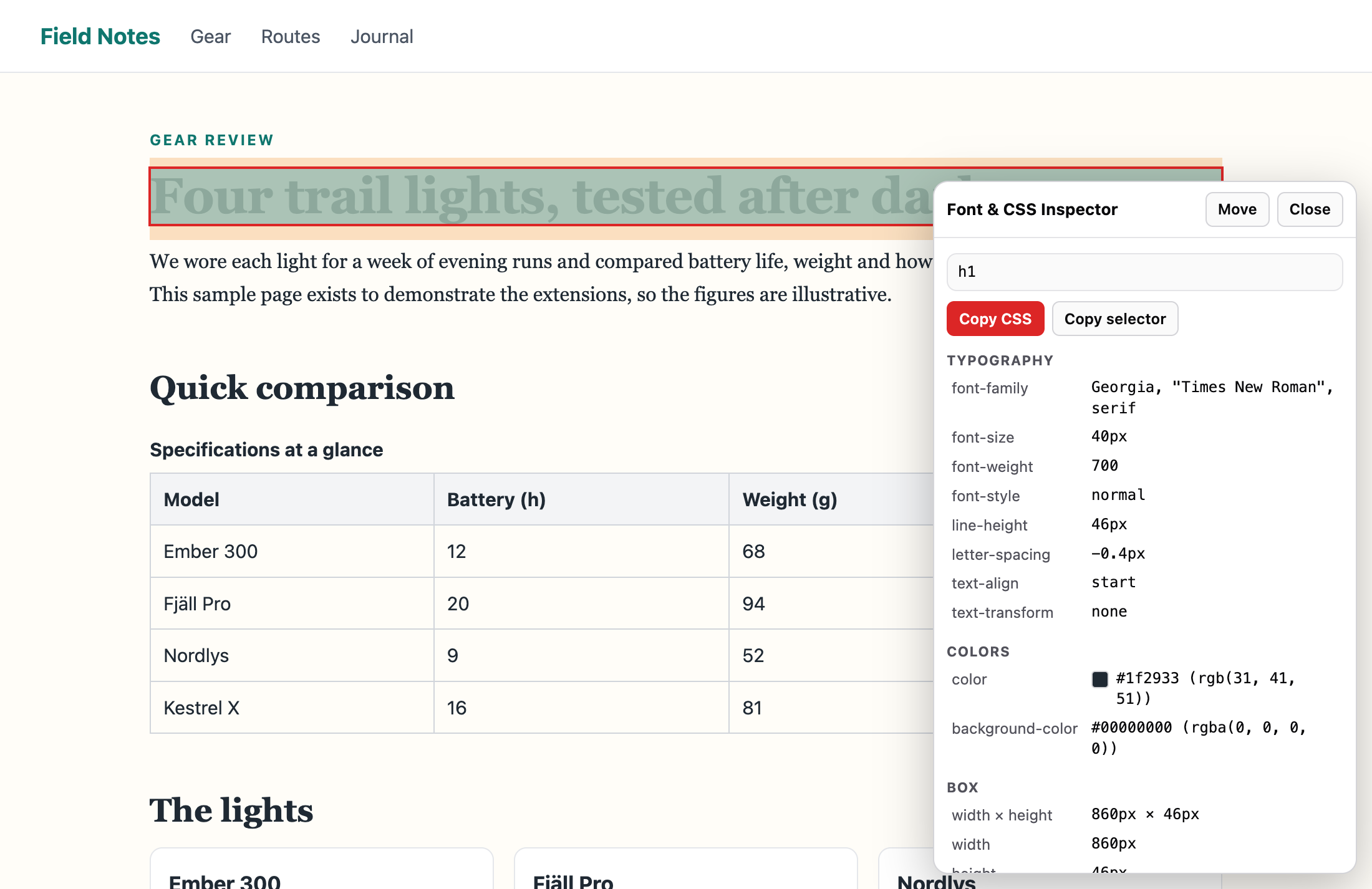
1 / 2 · The inspector panel showing the computed font family, size, weight, line height, colors and box model of a heading on a sample article. Shown on a sample page.
What it is
AnyTool Font & CSS Inspector shows the computed styles of any element you point at: typography, colors, box model, borders, dimensions, a unique selector, and the CSS custom properties that apply to it.
The inspector UI lives in an isolated shadow root so the page's own styles cannot break it, and it removes itself completely when you press Escape.
Values are the browser's computed values for the element you pick. They are not a copy of the site's source CSS, and the extension does not look up which font file a site downloaded.
Who it is for
Front-end developers
Read the computed font, spacing and color of any element, and copy a declaration block to start from, without opening a full DevTools session.
Designers
Check that a built page matches the design: font size, weight, line height, letter spacing, colors and padding are all visible in one compact panel.
Marketers and content editors
Find out which fonts and brand colors a page uses, with exact hex values you can copy into a brand guide or a document.
QA and accessibility reviewers
Verify computed values against a spec, and follow the parent and child structure of an element with the keyboard.
What it does
Features
- Hover highlight with a size and tag tooltip
- Click to select, arrow keys to move to parent or child
- Font family, size, weight, style, line height and letter spacing
- Text, background and border colors with hex values
- Padding, margin, width, height, border and radius
- WCAG contrast ratio of the text against its real background, with AA and AAA results
- Box-shadow, text-shadow and background-image shown when an element uses them
- Page tab: every colour, type style and image used on the page, click to copy
- Unique CSS selector for the element
- CSS custom properties that apply to the element
- Searchable list of every computed style
- Copy any value or a CSS declaration block
What it does not do
- Change or save any change to the page
- Identify the exact font file a site loaded
- Show the author's original (pre-cascade) CSS source
- Send anything about the inspected page anywhere
Use cases
Find out what font and size a heading uses
Start inspecting, click the heading, and read font-family, font-size, font-weight, line-height and letter-spacing. The font-family value is the whole stack the browser resolved, with fallbacks in order.
Copy a component's styles to prototype from
Click Copy CSS to get a declaration block with typography, colors, border, radius, padding, margin and size. It is a readable starting point, not a copy of the site's source stylesheet.
Check spacing and the box model
The selected element is drawn with its margin, border, padding and content areas in different tints, and the panel lists the same values numerically, including the rendered width and height.
Trace design tokens and CSS variables
The CSS variables section lists custom properties that apply to the element, where they come from, and which of its properties use var(). It makes theme-driven sites much easier to read.
Collect exact brand colors
Color rows show a swatch, the hex value and the original rgb or rgba value. Click a row to copy it.
Verify implementation against a spec
Compare letter-spacing, line-height and padding with the design file. Use the filterable list of every computed property to confirm a specific one.
How to use it
- Open the page and click the AnyTool Font & CSS Inspector toolbar icon.
- Press Start Inspecting, then move the pointer over the page.
- Click an element to select it and read its styles and contrast in the panel, or open the Page tab for the whole page's colours, type styles and images.
- Copy a value or the CSS block. Press Escape or Close to exit.
Step-by-step guide: How to inspect fonts and CSS on any webpage
How it works
An isolated overlay
The inspector lives in a single host element with a closed shadow root, so the page's CSS cannot restyle it and its scripts cannot read it. A transparent layer receives the pointer events, which means the page never sees your hovering and its own hover styles do not fire.
Computed styles, not source CSS
Values come from the browser's computed style for the element you pick, plus its geometry. That is the final result of the cascade, which is what you see on screen. It is not the author's original CSS, and it does not tell you which font file was downloaded.
A selector that is actually unique
The selector is built from an id if one is unique, otherwise from tag and class segments joined with child combinators, adding :nth-of-type only where a segment would be ambiguous. It is checked against the document to match exactly one element.
CSS variables from readable stylesheets
The extension reads the page's readable stylesheets, including rules nested in media and supports blocks, and matches them against the element and its ancestors. It also parses the element's inline style for var() usage. Stylesheets from other origins cannot be read by any extension, so variables defined only there may not appear.
Cleanup that leaves no trace
Pressing Escape or Close removes the host element and every listener. Tests compare the page's HTML before and after an inspection and require it to be identical.
Tips for better results
- Use the arrow keys to move to the parent, first child or neighbouring siblings without reaching for the mouse.
- Type in the Filter box under All computed styles to find one property quickly.
- Remember that font-family shows the stack, not necessarily the font that was drawn.
- To inspect a hover or focus state, use DevTools; the inspector's overlay stops the page seeing hover.
- Use Move to switch the panel to the other side of the screen if it covers what you are inspecting.
- Scrolling still works while inspecting, including inside scrollable panels.
Compared with other options
Browser DevTools can do everything this extension does and much more. The extension is for the moments when you want a quick, copy-ready answer.
| Option | Best for | Trade-off |
|---|---|---|
| Browser DevTools (Elements, Styles, Computed) | Editing CSS live, inspecting pseudo-states, seeing which rule won, and debugging layout. | More to learn and more on screen; copying a tidy declaration block takes extra steps. |
| Viewing the page source or stylesheet files | Reading the author's original CSS, comments and structure. | Large, minified files; hard to tell which rule applies to which element. |
| AnyTool Font & CSS Inspector | Quick point-and-click reading of computed fonts, colors, spacing, selector and CSS variables, with one-click copy. | Read-only; no hover or focus states; no pseudo-elements; no cross-origin iframes. |
Permissions explained
The extension asks for the following browser permissions and nothing else. It requests no access to all websites.
| Permission | Why it is needed |
|---|---|
| activeTab | Lets the extension work on the tab you open it from, only after you click the toolbar icon. |
| scripting | Injects the inspector overlay into the current tab and removes it again when you exit. |
Privacy
What it reads
- The computed styles, size, position and CSS custom properties of the elements you hover over or select.
- Readable stylesheets of the page, to find which CSS variables apply to a selected element.
What it keeps
- Nothing. The inspector keeps no data after you exit, and writes to the clipboard only when you press a copy control.
Nothing it reads is sent to AnyTool Studio or any other server. Read the full privacy notice.
Browser compatibility
Google Chrome
Manifest V3, Chrome 116 or later.
Install from the ZIP download above. Not currently listed in the browser store.
Microsoft Edge
Manifest V3, Edge 116 or later.
Install from the ZIP download above. Not currently listed in the browser store.
Limitations
- Values are computed values (for example colors appear as rgb), not authored source.
- Elements inside cross-origin iframes cannot be inspected.
- CSS variables defined in cross-origin stylesheets may not be listed because browsers block reading those rules.
- Pseudo-elements and hover or focus states are not inspected.
Extension or online tool?
Extension. Use the extension when you want a quick, point-and-click reading of an element's fonts, colors and spacing without opening DevTools.
Online tool. Use an online tool when you are designing from scratch, such as generating a box shadow or gradient to paste into your CSS.
Troubleshooting
Start Inspecting does nothing on a page.
Browser-internal pages and extension stores cannot be inspected. Open a normal website.
I can't select something inside an embedded frame.
Cross-origin iframes are isolated by the browser. Open the frame's address directly in a tab and inspect it there.
CSS variables list is empty.
Either none apply to the element or they are declared in cross-origin stylesheets that the browser does not let extensions read.
Frequently asked questions
Does it show the same values as browser DevTools?
The typography, color, box and size values come from the same computed style the browser exposes to DevTools, for the element you select.
Can it tell me which font file a site uses?
No. It reports the computed font-family stack and size. It does not identify the font file that was actually downloaded.
Will it slow the page down?
It listens for pointer events only while inspection is on and removes everything when you exit.
Can it download the images on a page?
It lists the images, icons and background images a page uses and copies their addresses. Downloading is left to your browser so the extension never makes network requests of its own.
Does it change my page?
It adds one isolated overlay element and removes it on exit. It does not modify the page's own styles.
Can I edit CSS with it?
No. It is read-only by design and never changes the page. Use browser DevTools for live editing.
Does it show hover, focus or active states?
No. While inspecting, pointer events are captured by the inspector's overlay, so the page does not receive hover. Use DevTools for state-dependent styles.
Why does the color show both a hex and an rgb value?
The browser reports colors as rgb or rgba. The hex value is converted from it for convenience, and clicking the row copies the hex.
Does it work on single-page apps?
Yes. It reads the live page at the moment you click, so dynamically rendered elements are inspected as they currently are.
Can it inspect web components?
Elements inside open shadow roots can be picked. Closed shadow roots and cross-origin iframes cannot be reached by an extension.
Does it identify the exact web font file?
No. It reports the computed font stack and size. For the file that was actually loaded, use the Network panel or the Rendered Fonts view in DevTools.
Is anything saved or sent anywhere?
No. It keeps nothing after you exit and makes no network requests. The clipboard is written only when you press a copy control.
Which browsers does it support?
Google Chrome and Microsoft Edge, version 116 or later. It was tested in Chromium and Google Chrome; an Edge-specific test pass is still to be done.
Related extensions
 CaptureDirect download
AnyTool Screenshot
Capture more than what's on your screen.
Capture the visible area, a region or a whole scrolling page; save PNG, JPEG or PDF, or copy. Processed on your device.
- Visible-area capture
- Drag-to-select region capture
- Full scrollable page capture with progress and cancel, including scrolling panels and same-origin iframes
View details
 ExtractDirect download
AnyTool Smart Data Extractor
Turn visible page data into useful files.
Export HTML tables and repeated items like lists and cards from the page you are viewing to CSV, JSON or XLSX.
- One-click auto-detect of the most substantial table or list on the page
- Finds every HTML table on the page and previews the first rows
- Point-and-click selection of repeated elements (cards, list items, rows)
View details